Defining the simulation world
Simulation happens inside an mvsim::World object. This is the central class for
usage from user code, running the simulation, loading XML models,
managing GUI visualization, etc. The ROS node acts as a bridge between
this class and the ROS subsystem, and the standalone mvsim cli tool
is just a thin wrapper loading a world model and running it.
Simulated worlds are described via configuration XML files called “world” files, which describes both, the environment itself and the vehicles or robots that move in it. By means of includes, robots, sensors, or environment objects can be defined in their own files for the sake of reusability.
Note
Many examples can be found in the mvsim_tutorial directory.
Look for the *.world.xml files.
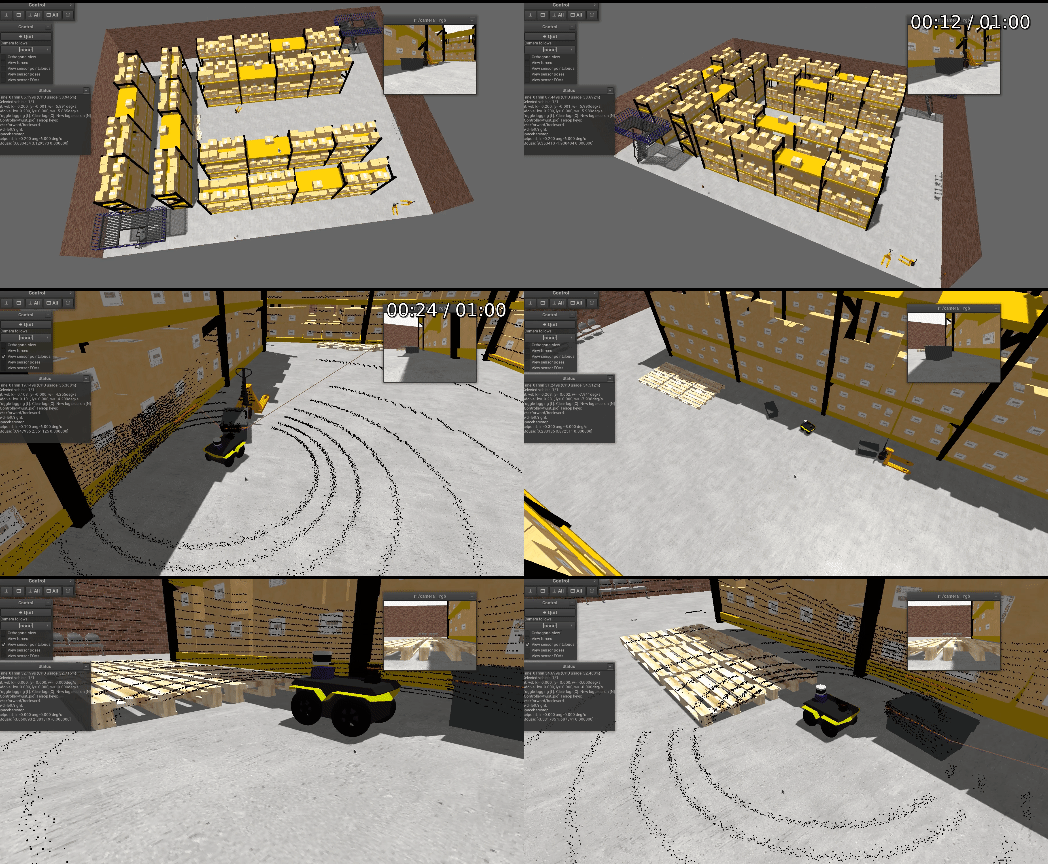
Demo “warehouse” world.
The next pages cover the main different parts of a world file, so you can understand the provided examples, modify them, or create your own worlds and robots.
Global settings
First, we have global definitions on the simulation itself, the GUI, and the lights and shadows:
World contents
Then we have to populate the world. MVSim defines four kinds of objects:
Elements (like walls, the ground, etc.) which normally do not move and are part of the environment structure,
Blocks: obstacles, furniture, buildings, or any object that may be static or dynamic but is not a controllable robot/vehicle. Blocks support per-instance visual scaling and can use reusable class definitions; and
Vehicles: the robots, vehicles, or agents themselves that can be controlled and typically have sensors.
Actors: animated characters (pedestrians, workers, etc.) that follow predefined paths with skeletal animation. Actors are purely kinematic and do not interact with the physics engine.
Objects can optionally be connected via Joints (rope or pin/hinge constraints) for articulated vehicles, tow ropes, or multi-body systems. This allows modeling trailers, cranes, or any mechanically linked objects.
Both, blocks and vehicles share two common APIs or interfaces: Simulable and VisualObject, hence
the properties of such interfaces are explained below in independent pages:
Advanced features
Other key features of MVSim world files are summarized next:
Simulation execution
Simulation executes step-by-step with user-defined \(\Delta t\) time between steps. Each step comprises:
Before time step - sets actions, updates models, etc.
Actual time step - updates dynamics
After time step - everything needed to be done with updated state
Simulation limitations
A limitation of box2d is that no element can be thinner than 0.05 units, or the following assert will be raised while loading the world model:
Box2D/Box2D/Collision/Shapes/b2PolygonShape.cpp:158: void b2PolygonShape::Set(const b2Vec2*, int32): Assertion `false' failed.